
Troubleshooting stage equipment for live shows can feel overwhelming when something goes wrong mid-performance. Whether you’re a worship leader, musician, or performer relying on backing tracks and lyrics, a single technical failure can derail your entire set.
At BLACK BOX Prompter, we understand the pressure of keeping everything running smoothly on stage.
If you’re new to running sound, don’t fret. We put together a guide that walks you through the most common issues you’ll face and gives you practical fixes you can implement right now, even during a show.
Understanding Your Stage Equipment Signal Chain
Your stage setup is a chain of connected devices: audio flows from your mixer to speakers, video signals move from your prompter to your display, and lighting cues sync with your music. When one link breaks, the whole chain fails. Understanding your signal chain means knowing where audio comes from, where it goes, and what happens in between.
Live Sound Troubleshooting Checklist: Audio Issues
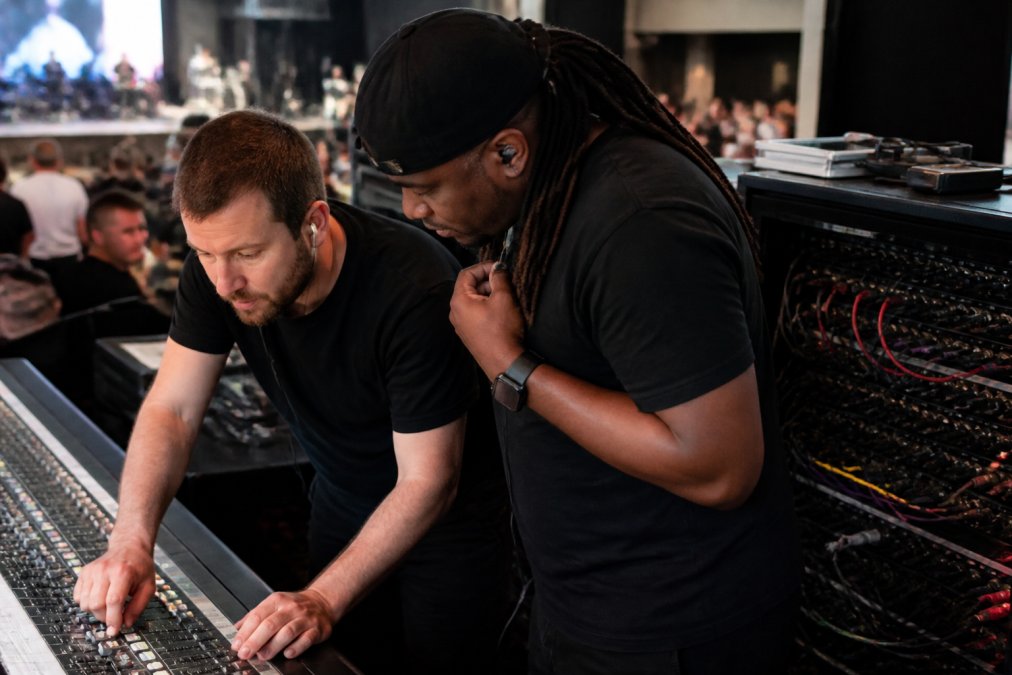
Live sound problems fall into three main categories: no sound, feedback, and intermittent connections. Each requires a different diagnosis.
No Sound or Low Volume
No sound is the most common and easiest issue to fix. Start here:
- Check your mixer’s master fader. Is it all the way down?
- Verify your channel fader isn’t muted. Look for a mute button or a red indicator.
- Confirm your speakers have power. Look for a power light.
- Test your XLR cables by wiggling them gently at both ends. A loose connection kills sound instantly.
- Check your gain staging. Your input levels should peak around -6dB, not in the red.
If you still have no sound, mute your mixer and unplug one XLR cable at a time while listening. This isolates which cable is the problem.
Feedback and Noise Issues
Feedback happens when a microphone picks up sound from a speaker, loops it back into the microphone, and creates a painful squeal.
Stop feedback immediately:
- Mute the channel causing feedback (usually a microphone channel).
- Move your microphone away from speakers.
- Lower your microphone’s gain on the mixer.
- Check your monitor mix. If your monitor speaker is too loud, it feeds back into the main microphone.
- Use a ground lift switch if your mixer has one. It breaks the ground loop causing hum.
Intermittent Connection Problems
Intermittent problems are hardest to diagnose. Check these first:
- Wiggle each XLR cable at both ends while audio is playing. If the sound cuts out, that cable is bad.
- Look for bent pins inside XLR connectors. Bent pins cause intermittent connections.
- Test your mixer’s channels one at a time. Swap channels if one is flaky.
- Move cables away from power lines and lighting equipment. Electrical interference causes dropouts.
- Check your speaker cables for cuts or kinks. Damaged cables lose signal intermittently.
Wireless microphone dropouts are usually frequency interference. Move away from Wi-Fi routers and cell phone towers. If dropouts persist, you may need to coordinate your wireless frequencies with other performers on stage.
Lighting Console and Visual Troubleshooting
Lighting problems are often overlooked until mid-show. A dark stage is worse than no sound, your audience can’t see you perform.
Test your lights before the show:
- Power on your lighting console and fixtures at least 15 minutes early.
- Run through your cues to verify each light responds.
- Check your DMX cable connections and verify your console is set to the correct DMX output.
Troubleshooting Confidence Monitor Issues on Stage
Your confidence monitor or teleprompter is your lifeline on stage. When it fails, you lose your lyrics, chords, and cues. Like all stage equipment, BLACK BOX Prompter needs proper setup and maintenance. If you’re new to using a lyrics monitor, check out resources like How to Transfer Your Songs to BLACK BOX Prompter and How to Create or Edit Set Lists on the Prompter to get your content loaded and organized before troubleshooting begins.
Display Problems and Connectivity
A blank screen is usually a connection problem. Check these steps:
- If you’re using a tablet connection kit with a Wedge Mirror or GO! Mirror, confirm the USB cable and HDMI cables are fully inserted
- Restart your device and the prompter. Wait 30 seconds between restart steps.
- Test with a different cable if you have one.
Dim or flickering display usually means power problems. Plug your prompter into a dedicated circuit away from high-draw equipment like amplifiers.
Navigation and Page Turning During Performance
Smooth page navigation keeps your performance flowing. Practice your page turning before the show:
- Test your foot pedal or keyboard page turner. Make sure it responds quickly.
- Walk through your entire setlist. Turn pages at the exact moments you need them.
- Practice with the actual songs you’re performing, especially if you use Auto-Scroll so that the scroll speed is just right.
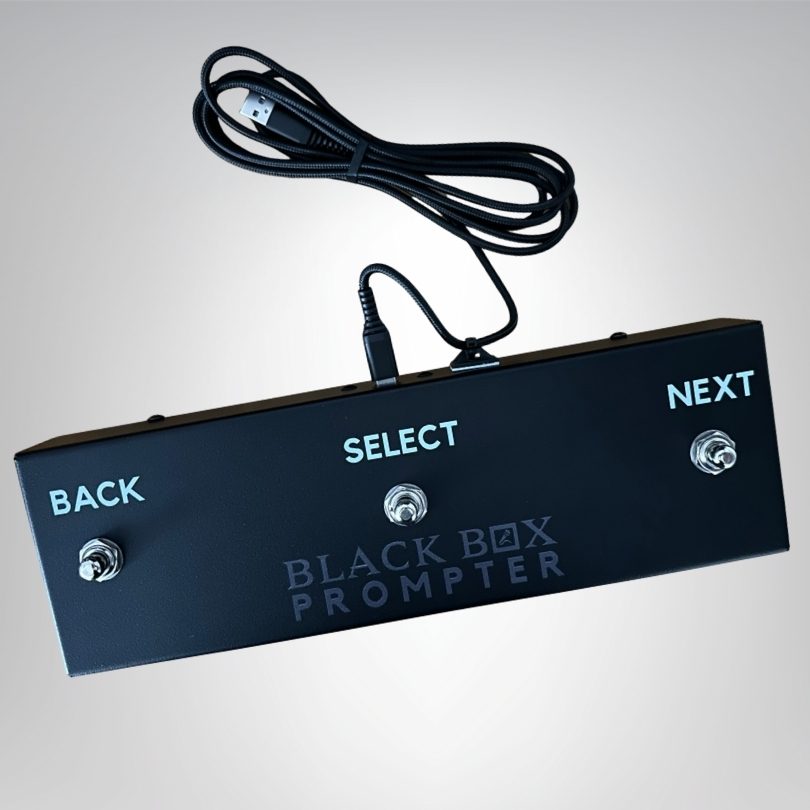
If you’re using standard view mode (not Auto-Scroll) to turn pages and the pages don’t turn, check that your page turner device is powered and connected and that the USB-C cable going into the page turner pedal is not bent.
Emergency Stage Repair Kit Essentials
Keep this kit offstage during every performance:
- Extra XLR cables
- Extra instrument cables
- Spare microphone (wired, not wireless)
- Flashlight with extra batteries
- Gaffer tape (holds cables and covers sharp edges)
- USB cables and adapters for your devices
- Spare power cord for your mixer
- Small screwdriver set
Gaffer tape is most useful, it holds loose cables, secures connections, and covers damage temporarily without leaving residue like duct tape.
Preventative Maintenance to Avoid Failures
The best troubleshooting is prevention. Regular maintenance stops problems before they start.
Monthly maintenance:
- Inspect all XLR cables for damage. Look for cuts, kinks, or bent connectors.
- Test your backup equipment. Spare microphones and cables should work perfectly.
- Clean your mixer’s faders with compressed air. Dust causes crackling.
- Check your speaker cables for cuts or exposed wire.
- Verify all connections are tight. Wiggle each cable gently.
Quarterly maintenance:
- Update firmware on your prompter and any wireless equipment. Manufacturers release fixes regularly.
- Test your entire signal chain from start to finish. Play a backing track through your complete setup.
- Inspect your power distribution. Look for overloaded outlets or damaged cords.
- Clean your prompter display with a soft cloth. Dust reduces visibility.
Annual maintenance:
- Have a professional inspect your mixing console and amplifiers.
- Replace worn XLR cables. Even cables that look fine can develop internal damage.
- Check your wireless microphone batteries. Replace them if they’re over a year old.
- Inspect your speaker cabinets for damage or loose components.
Show-Must-Go-On Emergency Protocols
When something fails during a performance, panic is your worst enemy. Have a plan.
Before the show starts, brief your team:
- Assign one person to handle technical issues.
- Establish hand signals for common problems (thumbs up = all good, fist = stop the music).
- Know your backup plan if your prompter fails.
- Have a “kill switch” ready to mute everything immediately if feedback happens.
If audio fails mid-song:
- Stop playing immediately and check your master fader.
- If that doesn’t work, switch to your backup microphone or instrument.
- Keep the performance moving, silence is worse than a brief technical pause.
If your prompter fails mid-performance:
- Finish the current song from memory if you can.
- Announce a brief technical pause to your audience.
- Restart your prompter, most issues resolve with a simple restart.
- If restart doesn’t work, switch to your backup lyrics source.
If lights fail:
- Continue your performance. Your audience came to hear you, not see fancy lighting.
- If the stage is completely dark, stop briefly and let your tech team address it.
- A flashlight pointed at your face works in an emergency. It’s not ideal, but it’s better than darkness.
Wireless Frequency Coordination and Interference
Wireless microphones are convenient, but they’re also fragile. Interference kills your wireless signal.
Before your performance:
- Scan for active frequencies in your venue.
- Coordinate with other performers to avoid the same frequencies.
- Avoid Wi-Fi frequencies and move away from routers.
- Check for cell phone towers nearby.
- Position your wireless receiver away from metal objects.
If your wireless microphone cuts out:
- Check your battery first.
- Move closer to your receiver.
- Change your frequency if available.
- Move away from other wireless equipment, Wi-Fi routers, and lighting equipment.
- If interference persists, switch to a wired microphone.
- Consider a paddle antenna system for future performances (can boost signal and reduce likelihood of interference)